PG Management
How to Bulk Import Rooms and Tenants with Excel in PG Management Software — The Complete 2026 Guide for Indian Owners
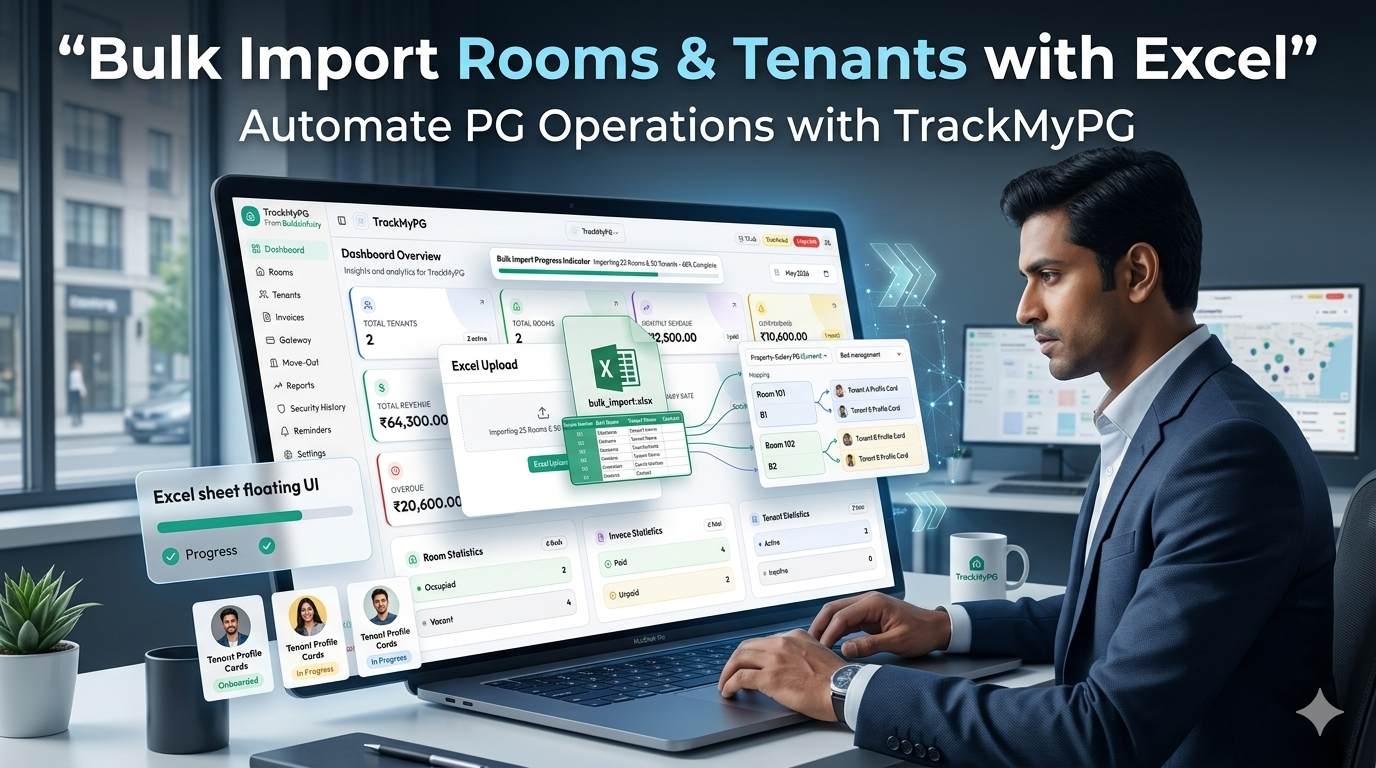
This blog explains how PG and hostel owners can use TrackMyPG’s bulk Excel import system to quickly set up rooms, beds, and tenants without manual entry. It covers room-wise and bed-wise pricing imports, smart tenant templates with live room availability, validation previews, duplicate handling, occupancy automation, invoice readiness, and error prevention during onboarding. The guide is designed for Indian PG operators looking to save time, reduce billing mistakes, and manage large-scale admissions efficiently.
Picture this. You have finally made the decision to stop managing your PG on WhatsApp notes, scattered Excel sheets, and a mental model that only you fully understand. You sign up for a PG management software, open the dashboard, and find the Add Tenant button.
Name. Phone. Email. Communication preference. Room number. Join date. ID proof type. ID proof number. Permanent address. City. State. Pincode.
By tenant number eleven, your phone has rung four times, someone is at the gate asking about a room, and you have just noticed that tenant number seven has the wrong room number. You fix it, get interrupted again, and by the time you sit back down you have forgotten where you were.
Now multiply this by 60 tenants. Or 100 beds. Or imagine it is May — peak admission season — and new students are moving in every day while you are simultaneously showing rooms, collecting deposits, and answering parents' questions about hostel rules.
Manual data entry is not just slow. It fails at exactly the moment accuracy matters most, when you are building the foundation that every future invoice, reminder, and occupancy count depends on. A wrong join date creates a wrong first-month bill. A wrong room number puts someone's rent in the wrong account. A bed assigned to two people because you lost track mid-session creates a confrontation when both of them show up with luggage.
Bulk Excel import exists precisely to break this cycle. And TrackMyPG has built one of the most thoughtful implementations of this feature available for Indian PG and hostel operators — a smart system that validates everything before saving anything, and pre-fills your actual live inventory before you type a single tenant name.
This guide covers the complete picture: room import, tenant import, what the templates look like column by column, how the validation works, and everything you need to know to get your entire PG set up correctly in one session.
Manual Entry vs Bulk Import: An Honest Comparison
Before getting into the specifics, it helps to see the full picture of what you are actually comparing.
Factor | Manual Entry (One by One) | Bulk Excel Import |
|---|---|---|
Time for 50 tenants | 4–6 hours (with interruptions) | 5–10 minutes after preparing the sheet |
Time for 100 tenants | Full working day | 10–15 minutes after preparing the sheet |
Error rate | High — typos, wrong rooms, transposed numbers | Low — system validates before saving |
Duplicate bed allocation | Common — easy to lose track | Prevented — occupied beds excluded from template |
First invoice accuracy | Often off — wrong join dates entered | Accurate — join date comes directly from import |
Scalability | Time-consuming as tenant count increases | Handles 500+ rows without issues |
Re-usability | Zero — done again from scratch for new batches | Template reused for every new admission cycle |
Skill required | Patience and attention | Basic Excel familiarity |
Undo capability | No — errors found weeks later | Yes — validation preview before any save |
The time difference is not marginal. For a 60-bed PG, bulk import saves the equivalent of a full working day. But the more important difference is accuracy. Manual errors introduced during setup follow you for months — wrong invoices, missed reminders, confused tenants. Bulk import surfaces every problem before a single record is saved.
Step One: Room Import — Set Up Your Inventory First
Tenant import depends entirely on your rooms already existing in the system. The tenant template is built from your live room and bed inventory. No rooms, no template. So room import always comes first.
TrackMyPG handles room import through two completely separate templates — one for room-wise pricing and one for bed-wise pricing. These are not combined. You cannot mix both types in a single file. This is an intentional design decision, and an important one.
Why Two Separate Templates?
Mixing room-wise and bed-wise rows in a single spreadsheet creates an ambiguous import — the system cannot know which rows belong to which mode, and any shared column (like Rent vs Bed Price) would mean different things for different rows. Keeping them separate eliminates all of that ambiguity.
You choose which mode you want when you click Download Template. The downloaded file is formatted specifically for that mode.
Room Import — Flow 1: Room-Wise Pricing
Room-wise pricing means the entire room has a single monthly rent. If Room 101 costs ₹15,000 and has three occupants, each person is billed ₹5,000. The room has a capacity and allows new tenants as long as headcount is below that limit.
When to use room-wise import:
Your rooms do not have individually named beds
All occupants of a room pay the same split rent
You track occupancy by headcount, not by bed assignment
Room-Wise Import Template Columns
# | Column Name | Required | Description |
|---|---|---|---|
1 | Room Number | Yes | Unique identifier for the room (e.g. 101, A-3, Ground-2) |
2 | Rent | Yes | Monthly rent for the entire room in rupees (must be greater than 0) |
3 | Capacity | Yes | Maximum number of occupants allowed (minimum 1) |
4 | Features | Optional | Comma-separated list of room features (AC, WiFi, Attached Bath, etc.) |
Room-Wise Import: Example Data
Room Number | Rent | Capacity | Features |
|---|---|---|---|
101 | 15000 | 3 | AC, WiFi |
102 | 12000 | 2 | WiFi |
103 | 18000 | 4 | AC, Attached Bath |
104 | 10000 | 2 | — |
201 | 15000 | 3 | AC, WiFi |
202 | 12000 | 2 | — |
Each row creates one room. Simple, clean, and fast. A PG with 20 room-wise rooms is a 20-row spreadsheet.
What Room-Wise Import Validates
Before creating any room, the system checks every row for:
Room Number present — a blank room number is rejected immediately
Rent greater than zero — rooms with zero or negative rent are flagged as errors
Capacity of at least 1 — a room with zero capacity is not a room
No duplicate room numbers within the file — if you accidentally list Room 101 twice, both rows are flagged
No conflict with existing rooms — if Room 101 already exists in your PG account, you are warned so you can choose how to handle it
Room Import — Flow 2: Bed-Wise Pricing
Bed-wise pricing means each bed inside a room has its own name and its own monthly price. Bed A might cost ₹7,500. Bed B, being a top bunk with less ventilation, costs ₹6,200. Tenants are assigned to specific beds and billed that exact amount every month — no splitting.
When to use bed-wise import:
Your rooms have individually named or numbered beds
Different beds within the same room have different rents
You want precise bed-level occupancy tracking
You operate a hostel-style setup with dormitory beds, each independently managed
Bed-Wise Import Template Columns
# | Column Name | Required | Description |
|---|---|---|---|
1 | Room Number | Yes | Identifier of the room this bed belongs to |
2 | Bed ID | Yes | Name or code for this specific bed (A1, A2, Upper, Lower, ALPHA, etc.) |
3 | Bed Price | Yes | Monthly rent for this individual bed in rupees (must be greater than 0) |
4 | Features | Optional | Comma-separated room features — shared across all beds in the room |
Bed-Wise Import: Example Data
Room Number | Bed ID | Bed Price | Features |
|---|---|---|---|
104 | 104-3 | 6500 | AC |
104 | 104-5 | 6000 | AC |
300 | 300-C | 5500 | WiFi |
301 | 301-A | 7000 | AC, Attached Bath |
301 | 301-B | 6800 | AC, Attached Bath |
302 | 302-A | 5800 | — |
500 | ALPHA | 7500 | AC, WiFi |
500 | BETA | 7500 | AC, WiFi |
500 | Gamma | 7000 | AC, WiFi |
Notice that Room 104, Room 301, and Room 500 each span multiple rows — one row per bed. The system reads all rows for Room 104, groups them together, and creates a single room document with two beds (104-3 at ₹6,500 and 104-5 at ₹6,000). You do not need a separate row for the room itself.
What Bed-Wise Import Validates
Room Number present on every row — required, no blank room numbers
Bed ID present on every row — every bed must have a name
Bed Price greater than zero — a bed priced at zero is flagged
No duplicate Bed IDs within the same room — two beds named A1 in Room 101 is an error
Maximum beds per room — the system enforces a reasonable limit per room to prevent malformed data
Room-Wise vs Bed-Wise: Choosing the Right Mode
Comparison Point | Room-Wise | Bed-Wise |
|---|---|---|
Rent structure | One price for the whole room | Individual price per bed |
How tenants are assigned | By room (headcount tracked) | By specific bed name |
Billing calculation | Room rent ÷ number of occupants | Each tenant billed their bed's exact price |
Template rows per room | One row per room | One row per bed |
Bed ID column | Not used | Required |
Best for | Standard shared rooms, family-style PGs | Hostels, dormitories, premium PGs with bed-level differentiation |
Vacancy tracking | Room is vacant until first tenant assigned | Bed-level vacancy — some beds full, others free in same room |
Many PGs use a mix — some rooms are room-wise, others are bed-wise. Because TrackMyPG uses separate templates for each mode, you run two separate imports: one for all your room-wise rooms, one for all your bed-wise rooms. Both end up in the same system and work together seamlessly for tenant assignment.
What Happens to Existing Rooms During Import?
When you import rooms, any room number that already exists in your PG account triggers a conflict warning. At that point, you choose how to handle it:
Duplicate Handling Mode | What Happens |
|---|---|
Skip | The existing room is left unchanged. Only genuinely new rooms are created. |
Update | The existing room record is overwritten with the new data from your file. |
Fail | The entire import stops immediately if any conflicting room is detected. |
For most owners doing an initial setup, Skip is the safest choice. For owners who deliberately want to update room prices or capacities across the board, Update is the right option.
Step Two: Tenant Import — The Smart Template
Once your rooms are in the system, you are ready to import tenants. This is where TrackMyPG's approach becomes genuinely different from most PG software.
When you download the tenant import template, you are not downloading a blank file with column headers. You are downloading a smart template — an Excel file that is dynamically generated from your actual live room and bed inventory at the moment you click download.
What Makes It Smart
Room numbers are already in the file — pulled directly from your live room data
Bed IDs are pre-filled for bed-wise rooms — only the unoccupied ones appear
Room-wise rooms show N/A in the Bed ID column — so you know not to enter a bed
Occupied beds are excluded — if Bed A1 in Room 101 is already taken, it simply does not appear in the template
Full rooms are excluded — if a room-wise room is at capacity, it does not appear
Dropdown validation is built in — key columns like Communication Preference and ID Proof Type use Excel dropdowns so you cannot type invalid values
This means the template is a snapshot of what is actually available right now. Not a generic form. Not a guess. Your real inventory, ready to fill.
The Complete Tenant Import Template: All 14 Columns
# | Column Name | Required | Notes |
|---|---|---|---|
1 | Tenant Name | Yes | Full name as it appears on the tenant's ID proof |
2 | Phone | Yes | 10-digit Indian mobile number — column must be formatted as Text |
3 | Yes | Valid email address used for rent reminders | |
4 | Communication Preference | Yes | Dropdown — controls how the tenant receives notifications |
5 | Room Number | Yes | Pre-filled from your inventory — do not retype manually |
6 | Bed ID | Depends | Pre-filled as N/A for room-wise rooms; pre-filled with actual bed ID for bed-wise rooms |
7 | Joining Date | Yes | Actual move-in date — affects first month's invoice calculation |
8 | ID Proof Type | Yes | Dropdown — select the type of government ID the tenant has provided |
9 | ID Proof Number | Yes | The ID number matching the selected proof type |
10 | Permanent Address | Yes | Full street address of tenant's permanent residence |
11 | Permanent Address City | Yes | City of permanent residence |
12 | Permanent Address State | Yes | State of permanent residence |
13 | Permanent Address Pincode | Yes | 6-digit pincode |
14 | Permanent Address Country | Optional | Defaults to India if left blank |
This is a complete tenant record — exactly the same fields as the manual add-tenant form in the dashboard. Tenants imported via Excel are full records from day one, with no missing fields to chase up later.
The Communication Preference Dropdown: All Valid Options
The Communication Preference column uses an Excel dropdown. Click any cell in that column and you will see these options:
Option | What It Means |
|---|---|
Tenant receives all notifications by email only | |
SMS | Tenant receives all notifications by SMS only |
Email, SMS | Tenant receives notifications by both email and SMS |
Tenant receives all notifications via WhatsApp only | |
Email, WhatsApp | Tenant receives notifications by email and WhatsApp |
SMS, WhatsApp | Tenant receives notifications by SMS and WhatsApp |
Email, SMS, WhatsApp | Tenant receives notifications through all three channels |
Important: Do not type this value manually. The exact wording — capitalisation and comma placement — must match one of these options for validation to pass. The dropdown guarantees the correct format every time.
The ID Proof Type Dropdown: All Valid Options
ID Proof Type | When to Use |
|---|---|
Aadhaar Card | Most common — 12-digit Aadhaar number |
PAN Card | For working professionals who provide PAN |
Passport | For tenants with Indian or foreign passport |
Voter ID | EPIC card holders |
Driving License | State-issued driving licence |
Other | Any government ID not listed above |
Again — select from the dropdown, do not type. "Aadhar" instead of "Aadhaar Card", or "DL" instead of "Driving License", will fail validation.
What the Pre-Filled Template Rows Look Like
Here is an example of what the pre-filled inventory rows in a real tenant import template look like, based on an actual PG's room and bed configuration:
Tenant Name | Phone | Comm. Pref. | Room Number | Bed ID | Joining Date | ID Proof Type | ... | |
|---|---|---|---|---|---|---|---|---|
(fill in) | (fill in) | (fill in) | (dropdown) | 101 | N/A | (fill in) | (dropdown) | ... |
(fill in) | (fill in) | (fill in) | (dropdown) | 103 | N/A | (fill in) | (dropdown) | ... |
(fill in) | (fill in) | (fill in) | (dropdown) | 104 | 104-3 | (fill in) | (dropdown) | ... |
(fill in) | (fill in) | (fill in) | (dropdown) | 104 | 104-5 | (fill in) | (dropdown) | ... |
(fill in) | (fill in) | (fill in) | (dropdown) | 301 | 301-A | (fill in) | (dropdown) | ... |
(fill in) | (fill in) | (fill in) | (dropdown) | 301 | 301-B | (fill in) | (dropdown) | ... |
(fill in) | (fill in) | (fill in) | (dropdown) | 500 | ALPHA | (fill in) | (dropdown) | ... |
(fill in) | (fill in) | (fill in) | (dropdown) | 500 | BETA | (fill in) | (dropdown) | ... |
(fill in) | (fill in) | (fill in) | (dropdown) | 500 | Gamma | (fill in) | (dropdown) | ... |
Room 101 and Room 103 are room-wise — so Bed ID is N/A. Room 104, 301, and 500 are bed-wise — so specific bed names appear. Each row is one available slot. If you do not want to fill a slot right now, simply leave that row's tenant details blank. Blank rows are ignored during import.
The Validation Step: Nothing Is Saved Until You Approve It
This is the most important part of the import flow, and the part most owners appreciate most when they understand it.
After you upload your filled template, the system does not immediately create any records. Instead it runs a full validation pass across every row and shows you a preview:
Total rows detected
Valid rows (ready to import)
Invalid rows (need fixing)
Specific error for each invalid row
What Gets Validated on Every Row
Structural checks — no database access needed:
All required columns are filled
Phone number is in valid 10-digit format
Email address is in valid format
Communication preference matches a valid option
Joining date is a parseable, real date
ID proof type matches a valid option
Inventory checks — against your live room data:
Room number exists in this PG
If room is room-wise: room still has capacity available
If room is bed-wise: specified bed exists in that room
If room is bed-wise: that specific bed is not already occupied
Bed assignment matches the room's pricing mode (no bed IDs for room-wise rooms)
Business rule checks:
Same phone number not used twice in the same file
Same email not used twice in the same file
Same room + bed combination not assigned to two different rows in the same file
Typical Validation Preview Output
Check | Example Error Shown |
|---|---|
Missing phone | Row 22 — Phone number is required |
Invalid phone | Row 34 — Phone number format invalid |
Invalid email | Row 41 — Email address format invalid |
Missing comm. pref. | Row 55 — Communication preference is required |
Room does not exist | Row 63 — Room 207 not found in this PG |
Room at capacity | Row 71 — Room 202 is at full capacity |
Bed occupied | Row 88 — Bed 104-3 in Room 104 is already occupied |
Duplicate phone in file | Row 94 — Phone 9876543210 already appears in Row 18 |
Missing joining date | Row 102 — Joining date is required |
Invalid ID proof type | Row 115 — ID Proof Type value not recognised |
You see every problem, row by row, with the exact reason, before anything is saved. Fix the issues in your Excel file, re-upload, and run the validation again. Repeat until the preview shows all rows as valid — then start the import.
Duplicate Handling for Tenants: Three Modes Explained
When a row in your import file matches a tenant who already exists in the system — identified by phone number or email address — you choose what happens:
Mode | What It Does | When to Use |
|---|---|---|
Skip | Existing tenant records are left completely unchanged. Only new tenants from the file are added. | First-time setup when you want to avoid overwriting anything accidentally |
Update | Existing tenant records are overwritten with the data from your file. Status is set to active. | When you are refreshing tenant data — new addresses, updated contact details |
Fail | The entire import stops immediately if any existing-tenant conflict is detected. | When you want strict control and zero accidental overwrites |
For most owners doing an initial migration from Excel to software, Skip is the correct choice. Your existing tenant records (if any) stay intact, and only the genuinely new entries from the file are created.
The Complete Import Lifecycle: From Upload to Final Report
Here is the full step-by-step journey for both room and tenant import, from the moment you click Upload to when you download your report:
Step 1 — Select Mode (Room Import only)
Choose Room-Wise or Bed-Wise. Download the corresponding template.
Step 2 — Fill the Template
For rooms: enter room numbers, rents, capacities, and features.
For tenants: fill in tenant details for the pre-populated inventory rows you want to use.
Step 3 — Upload
Go to the import page in your TrackMyPG dashboard and upload the filled .xlsx file. The system creates an import job and begins processing.
Step 4 — Automatic Validation
The system checks every row. This takes seconds to a minute depending on file size.
Step 5 — Review the Preview
See the validation summary: total rows, valid rows, invalid rows, and a row-by-row error list. Fix any issues in your file and re-upload if needed.
Step 6 — Choose Duplicate Handling
Select Skip, Update, or Fail based on how you want conflicts handled.
Step 7 — Start Import
Click Start. The system processes records in batches and shows a live progress bar.
Step 8 — See the Summary
After completion, a summary shows: records inserted, updated, skipped, and failed.
Step 9 — Download the Report
A downloadable .xlsx report is available showing every row's outcome with the specific action taken and reason for any failure.
What Happens Automatically After a Successful Import
Once rooms and tenants are imported correctly, TrackMyPG does not sit idle waiting for manual follow-up. Several things happen automatically:
Occupancy updates immediately — room and bed availability in your dashboard reflects the imported tenants straight away, with no manual updating required
First invoices are ready to generate — because the join date was part of the import, first-month rent is calculated correctly based on your property's billing settings (full month, pro-rata, or hybrid)
Rent reminders are queued — tenants whose email or phone was included will receive payment reminders from the first billing cycle, based on the communication preference in their record
Occupancy reports are accurate — your dashboard's occupancy percentage, vacant beds count, and revenue projection are all immediately correct
Police verification tracking starts — every imported tenant begins with a verification status of "not submitted," ready for you to link their ID documents through the verification workflow
Security deposit records are ready — you can start tracking deposits immediately without re-entering any tenant information
Using Import During Peak Admission Season
May and June are the most chaotic months for student PG operators across India. New inquiries arrive daily, rooms get committed over phone calls, deposits are collected in cash, and actual move-ins are spread over two weeks. Trying to enter each new tenant in real time during this stretch is where most data errors are born.
A practical approach that works well during peak season:
Keep a daily running sheet — just name, phone, room, and date, captured on your phone or in a quick note
At end of day, transfer to the tenant import template — fill in email, ID proof, communication preference, and address while everything is fresh
Upload as a daily batch — validation catches any conflicts, you confirm, and all of that day's tenants are in the system overnight
Next morning, download a fresh template — it will already exclude the beds you filled the night before, showing only what is genuinely still available
This removes the chaos from the data entry process without slowing down the admission itself. You can show rooms, negotiate, collect deposits — and still end every day with accurate records.
Multi-Property Owners: How Import Scales Across PGs
If you manage two or more properties, manual onboarding does not just take twice as long — it creates a new failure mode. Tenants accidentally assigned to the wrong property, invoices generated from wrong room data, and occupancy counts that do not reflect reality across locations.
In TrackMyPG, every import is scoped to one property at a time. Switch to the correct property in your dashboard, download that property's template (which contains only that property's live inventory), fill it in, and upload. Then repeat for the next property.
Each import is completely isolated. A tenant from your Pune PG cannot appear in your Bangalore hostel's records. A room from one property cannot conflict with a room of the same number in another.
For owners who are acquiring an existing PG from someone who managed it on notebooks — this makes migration genuinely practical. Take their records, clean them up into the template format, and move their entire tenant base into the system in one session.
Common Mistakes That Cause Import Failures (And Exactly How to Avoid Them)
Mistake | Why It Fails | How to Avoid It |
|---|---|---|
Typing Room Number instead of using pre-filled value | System cannot find the room | Use pre-filled rows; do not retype |
Leaving Communication Preference blank | Required field — no default | Always select from dropdown |
Typing Communication Preference instead of using dropdown | Exact match required | Click cell, select from list |
Entering ID Proof Type manually | "Aadhar" ≠ "Aadhaar Card" | Use the dropdown — exact values only |
Phone number formatted as a Number type | 9876543210 becomes 9.88E+9 | Format column as Text before filling |
Date entered as plain text | "May 1 2026" may not parse | Use Excel date format; do not type text |
Saving as CSV before upload | Only .xlsx accepted | Download as Excel (.xlsx) from Google Sheets |
Partially filling a row | Required fields missing = validation fail | Complete all required columns for every row |
Same phone number in two rows | Duplicate in-file conflict | Check for duplicates before upload |
Uploading before rooms are imported | Tenant template has no inventory | Complete room import first |
Why Getting the Import Right Matters More Than Just Saving Time
The most commonly underestimated consequence of a messy initial setup is the ripple effect it creates across every month that follows.
When a join date is wrong by ten days, the first invoice is wrong. When a room assignment is wrong, the rent amount on the invoice is wrong. When a phone number is entered incorrectly, the payment reminder never reaches the tenant. Each of these is a small individual mistake. But multiplied across 50 tenants, they become a customer service burden that consumes hours every month.
Getting the import right the first time means your first billing cycle works correctly. Which means tenants trust the invoice they receive. Which means payment reminders feel professional rather than confusing. Which means the software actually earns its place in your operation instead of creating new problems.
Bulk import is not a setup shortcut. It is the foundation that makes everything downstream reliable.
If you are ready to move your PG operations off spreadsheets and onto a platform that handles rooms, beds, tenants, billing, reminders, and reporting in one place, TrackMyPG is designed specifically for how Indian PG and hostel businesses work.
The import is where you start. Everything else — the invoicing, the reminders, the occupancy dashboards, the financial reports — is built on top of what you set up correctly in this first step.
Frequently Asked Questions
Run your PG smarter, not harder
Collect rent on time, track tenants, and stay on top of every room — without spreadsheets.
Start 7-day Trial for ₹1 →- Rent invoices & payment tracking
- Tenant & room management in one place
- Reports built for PG owners in India
Share this article
Share "How to Bulk Import Rooms and Tenants with Excel in PG Management Software — The Complete 2026 Guide for Indian Owners" on social media or copy the link.